How to Revert to a Previous Version When You Don't Like Your AI Website Edits

Photo: https://kaboompics.com/ · Pexels
When you build a website yourself, there comes a moment when you tweak some text or adjust the design and think, 'I liked the previous version better.' If you hired an outside agency, you would have to submit a revision request and wait, but when you manage things yourself, having a safety net to roll back immediately is crucial.
Common Mistakes and Worries During AI Website Edits
Changing your site with a quick chat or simple input is incredibly convenient. However, sometimes the AI alters the layout in a way you did not intend or deletes copy you actually liked. Many people panic in these situations, refresh the screen, or even try building the entire site from scratch.
Yet, if you are using the right tools, there is no need to worry. Fear of making mistakes makes it hard to boldly experiment until you get the result you want. This is why you must check whether a reliable safety net exists to protect your original work before making AI website edits.
Reverting to a Previous Version with One Click
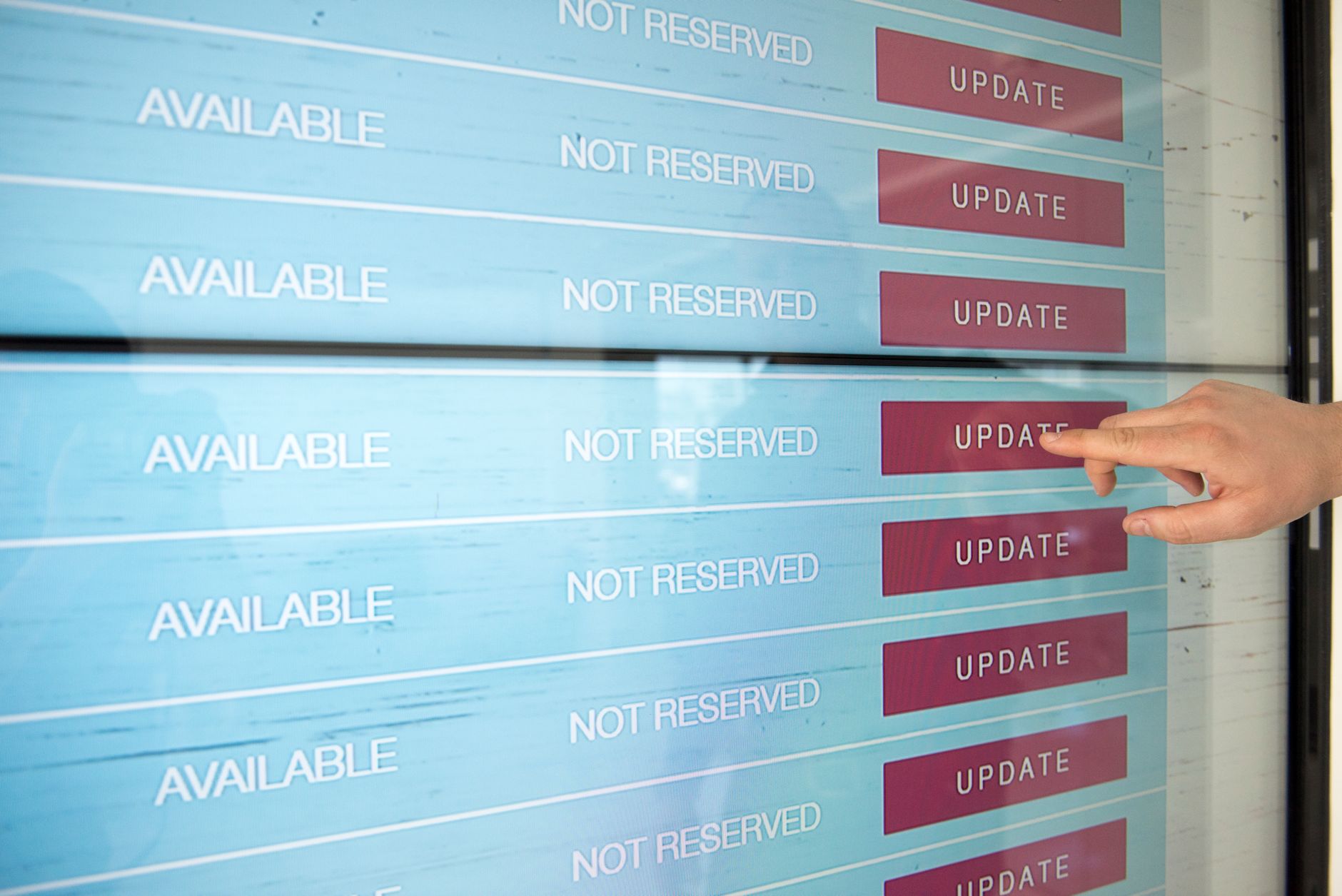
With ROYJU, even if you go through multiple rounds of edits via the management screen or agent chat, a built-in function allows you to revert to a previous version whenever you want. Because your work history is saved step by step, a single mouse click lets you restore the immediate past state or any desired point in time if something goes wrong.
Here are a few practical tips to keep in mind when using this feature:
- Before making major design changes, check your dashboard to ensure the current state is properly saved.
- Instead of throwing too many demands at the AI agent all at once, edit section by section and check if you like the results.
- Clicking the revert button removes only the most recent modifications, so you do not have to worry about losing your overall framework.
Managing Your Website with Confidence
For business owners running their own sites, the biggest mental barrier is often the anxiety of breaking something. Once you realize you can freely undo and redo your edit history, you can much more boldly fill your site with text and photos tailored to your industry.
| Situation | Action Plan |
|---|---|
| Text looks strange after an edit | Select and restore a previous version from the chat window or admin log |
| Design layout breaks | Call up the last saved version using the one-click revert function |
| Want to try something new | Enter prompts boldly without fear of mistakes and compare results |
Start Managing Your Site Without the Fear of Mistakes
A website is not a one-and-done project; it is a space you continuously refine to match your business's growth. By utilizing a reliable rollback feature during AI website edits, you can maintain a polished site while saving on agency costs. If you have any questions while running your site yourself, check out the detailed processes and features at AI website building.
FAQ
If I mess up my website completely while editing with AI, do I have to start over from scratch?
No. A revert function allows you to safely restore your site to its pre-edit state or a desired past point with a single mouse click.
How many steps back can I go in my edit history?
You can safely return to previous states based on the history saved during your workflow. Exact pricing details and feature tiers can be checked on the pricing page.
Put it into practice
Describe what you need and your website is ready in minutes, with blog marketing running every day.