How to Edit Your Website and Roll Back When You Make a Mistake

Photo: Jonathan Borba · Pexels
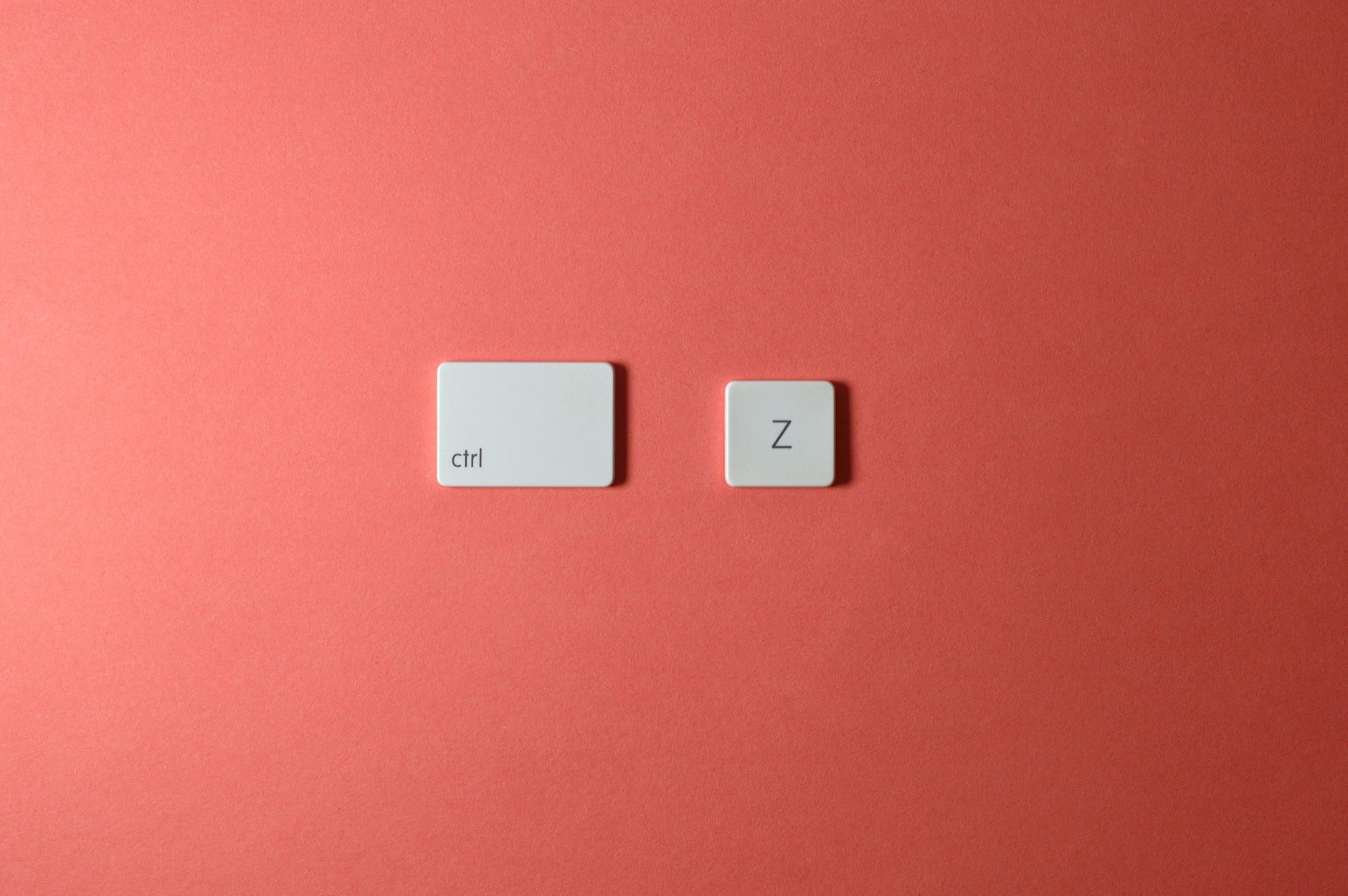
Have you ever broken out in a cold sweat after accidentally deleting some text or ending up with a layout you never wanted while tweaking your site? When you are searching for how to edit your website, your first worry is usually whether you have to build the whole thing from scratch again. Whether you are chatting with an AI agent or updating text directly in the admin dashboard, mistakes happen to everyone.
Common Mistakes Made During Website Edits
Managing your own site often leads to unexpected results. Sometimes you try to update a short blurb and accidentally delete your core introduction. Other times, you tweak alignments or colors only to find the mobile view looks completely broken. While it is great that anyone can make updates without knowing how to code, that also means it is just as easy to change things into an unwanted state.
Changes in Chat and Admin Screens
When using an AI website builder like ROYJU, you can click the section you want to change, talk to the agent through chat, or update content directly via input fields. While it is convenient for real-time updates to hours, prices, or menus, you might occasionally find yourself wishing for the old design back. Knowing how the safety features work ahead of time makes the process much more comfortable.
Steps to Roll Back to a Previous Version After a Mistake
If your edits didn't turn out the way you wanted, stay calm and follow these steps to recover:
- Carefully review the updated result and determine what you want to change.
- Check the previous work history in the agent chat window or admin log.
- Execute the rollback button or command to safely restore the site.
- Review the restored screen and make new edits step-by-step.
Practical Tips for Safe Website Management
Repeated edits bring your site closer to perfection, but try to avoid changing too many things at once. Getting into the habit of making one change at a time and checking the result helps you spot exactly where an error occurred. Exact pricing is provided after reviewing the current status. Regularly checking site health and utilizing backup features are also great practices.
If you run into roadblocks while shaping your site just the way you want, take a look around whenever you are ready. You can reimagine your site from the ground up through AI Website Builder, or check the Pricing Guide to find the features and environment that best fit your business.
FAQ
Can I completely restore a page I messed up while editing?
Yes, you can safely recover your site to its pre-mistake state by using the rollback function in the AI agent chat or admin settings.
Can I edit my website even if I don't know much about how to update it?
Yes, anyone can easily make updates without technical knowledge by simply clicking the desired section, chatting with the agent, or typing updates into the input fields.
Put it into practice
Describe what you need and your website is ready in minutes, with blog marketing running every day.


